Find answers to common questions about using NextzChat
📝
Sign Up & Account
Create an account, verify email, and manage your account
🚀
Getting Started
Learn how to sign up, create groups, and send your first message
💬
Messaging
Edit, delete messages, typing indicators, read receipts, and more
👥
Groups & Members
Create groups, manage members, set roles, and group settings
🔒
Privacy & Security
Understand how your data is protected and message retention
🏢
Organizations
Create and manage your community organization structure
⚙️
Admin Features
Group settings, message moderation, and member management
📌
Organization Features
Events, pins, sticky notes, and polls to organize your community
🔐
Encryption & Data Protection
How your messages and data are encrypted and secured
🧵
Message Threads
Reply to specific messages and organize conversations
🤖
AI Features
Smart analysis, sentiment detection, language detection, and more
🧠
Agent Assistant
How to trigger the Agent, privacy, and org-scoped context
📂
Organization Hierarchy
View org → groups → threads diagrams and user journey
🚫
Moderation & Profanity
Content rules, profanity filtering, spam protection, and community safety
🔧
Troubleshooting
Solve common problems and find technical support
🔑 Access & Organizations
Do I need to create an account?▼
Not necessarily — this deployment of NextzChat does not require creating an account. You can open the app and access organizations and groups without creating an account. Certain admin features still require organization membership or admin privileges.
How do I switch between organizations?▼
Open the Profile or organization picker (top bar or the "Join Organization" screen). Select the organization to switch to. To join an organization, enter the organization ID or accept an invite from an admin.
What if an action requires admin rights?▼
Membership roles control access even without traditional authentication. If you need admin capabilities (for example, to upload or manage organization FAQs), ask an organization admin to grant you the role or perform the task via the Admin Portal.
📝 Sign Up & Account Creation
How do I create a NextzChat account?▼
To create a new account with email:
Tap "Sign Up" on the welcome or onboarding screen
Enter your email address
Create a secure password (minimum 6 characters)
Check the "13+ age confirmation" box
Click the "Terms of Service" link to review and check the agreement box
Click the "Privacy Policy" link to review and check the agreement box
Tap "Sign Up" to create your account
⚠️ Important: You must review BOTH the Terms of Service and Privacy Policy by clicking the links before you can sign up.
What password requirements are there?▼
Your password must meet these requirements:
At least 6 characters long
Can include letters, numbers, and special characters
Case-sensitive (ABC is different from abc)
💡 Tip: Use a unique password that you don't use on other websites.
Why do I need to review the Terms of Service and Privacy Policy?▼
To use NextzChat, you need to agree to our terms and understand your privacy rights:
Terms of Service: Explains how the app works, your rights, and our responsibilities
Privacy Policy: Details what data we collect, how we protect it, and how you can control it
Both documents are required by law to be reviewed before account creation
The app requires you to:
✅ Click the link to open the full document
✅ Check the checkbox to confirm you've read it
✅ Do this for BOTH Terms of Service AND Privacy Policy
✓ Feature: The app guides you through clicking both links—just follow the prompts!
What does the age requirement mean?▼
NextzChat requires users to be at least 13 years old:
You must check the "I confirm I am 13 years or older" checkbox to sign up
This is a legal requirement for online services
By checking this box, you confirm your age
This protects both the app and its users by complying with laws like COPPA (Children's Online Privacy Protection Act).
What happens after I click "Sign Up"?▼
After you sign up, here's what happens:
Your account is created in our system
An email is sent to your email address with a verification link
You're shown a screen: "Check your email for a verification link"
The app monitors for email confirmation
Click the link in the email to verify your account
💡 Tip: Check your spam/junk folder if you don't see the confirmation email.
I signed up but didn't get the confirmation email. What should I do?▼
If you don't receive the confirmation email:
Check spam folder: The email might have been marked as spam
Wait a few minutes: Email delivery can take a few moments
Resend email: On the verification screen, tap "Resend Email" button
Use a different email: If the address was wrong, sign up again with the correct email
Check email address: Make sure you entered the email correctly when signing up
⚠️ Important: You cannot access the app until you verify your email. This is a security measure to protect your account.
How do I verify my email?▼
To verify your email and activate your account:
Open the confirmation email you received
Click the "Verify Email" link in the email
Your email is instantly confirmed
You're automatically redirected to the onboarding screen
Complete any remaining onboarding steps (for example, create a display name)
✓ Feature: The app automatically detects email confirmation and redirects you!
What if I try to sign up with an email that already exists?▼
If the email address is already registered:
You'll see an error: "User already exists. Use account recovery or contact support"
This means someone already created an account with that email
Use the "Forgot Password" or account recovery option to regain access, or try a different email address
Or try signing up with a different email address
💡 Tip: If you forgot your password, use the "Forgot Password" option on the account recovery screen.
Can I change my email after signing up?▼
Currently, you cannot change your email address after signup. However:
You can create a new account with a different email address
Once in your account, you can update your display name in Profile settings
Your email is used for account verification and password recovery only
If you need to use a different email, contact support for assistance.
After email verification, what happens next?▼
After you verify your email:
A success message appears: "Your email has been verified!"
You'll be redirected to the "Join Organization" screen (or the app's main entry screen) so you can create or join an organization.
Create a new organization or join an existing one to get started; a display name will be requested if needed.
💡 Tip: Some deployments do not require a separate authentication step—simply follow the onboarding prompts after verification.
Can I skip the email verification?▼
No, email verification is required and cannot be skipped:
Email verification is a security feature to protect your account
It proves you own the email address you provided
It prevents fraudulent account creation
Without it, your account cannot be accessed
The verification process is fast—usually just a single click on the email link.
My Terms/Privacy link says I need to click it but it won't let me sign up. What's wrong?▼
The signup process requires you to actively review the agreements:
You must CLICK (tap) the "Terms of Service" link to open it
After opening it, check the "I agree to Terms of Service" checkbox
You must CLICK (tap) the "Privacy Policy" link to open it
After opening it, check the "I agree to Privacy Policy" checkbox
Only then can you click "Sign Up"
The app requires this to ensure you've actually reviewed the documents before signing up.
🚀 Getting Started
How do I sign up?▼
Getting started with NextzChat is simple:
Open the NextzChat app on your device
Enter a display name (this is how other users will see you)
Tap "Continue" or finish the onboarding prompts
You're ready to chat! No email or password required
💡 Tip: You can change your display name anytime in your profile settings.
How do I create a group?▼
To create a new group:
Tap the "+" button in the chat list
Select "Create Group"
Enter a group name and optional description
Add group rules (optional) to help guide conversations
Tap "Create" to finish
You'll be automatically set as the group admin and can invite members to join.
How do I join a group?▼
To join an existing group:
Ask the group admin for the group ID or invitation link
In the app, tap "+" → "Join Group"
Paste the group ID and tap "Join"
You'll instantly appear in the group and can see chat history
💡 Tip: Admins can set whether new members see chat history or only new messages going forward.
How do I send my first message?▼
Once you're in a group:
Tap on the group from your chat list
Type your message in the text box at the bottom
Tap the send button (arrow or paper plane icon)
Your message appears instantly for all group members
Can I use NextzChat offline?▼
Yes! NextzChat supports offline functionality:
Messages you receive are cached locally on your device
You can read previous messages without internet
Messages you send while offline are queued and sent when you reconnect
The app syncs automatically once you're back online
✓ Feature: Our offline-first design means you never lose chat history or outgoing messages.
💬 Messaging Features
What is the Threads tab and how does it work?▼
The Threads tab shows message threads (replies grouped by origin message). Open a thread from the chat screen to see all replies in context. Threads keep conversations organized and make it easy to follow replies to a specific message.
How does the Chat screen thread view work?▼
Tap a message in the chat to open its thread. The thread tab displays the original message and all replies. You can reply inside the thread — replies are visible both in the thread and (optionally) inline in the group chat depending on group settings.
What is the Agent feature?▼
The Agent is an optional assistant integrated in chat. It can answer questions, summarize conversations, and help find relevant organization FAQs. Trigger the Agent by mentioning it in a chat or using the assistant button in the chat screen. Agent responses use organization-scoped FAQ context when available.
How do I edit a message?▼
To edit a message you've sent:
Long-press (or press and hold) the message you want to edit
Select "✏️ Edit" from the menu
Update the text and tap "Save"
The message will be updated for all group members
An "(edited)" label appears below the message so others know it was changed
💡 Tip: You can only edit your own messages, not messages from other users.
How do I delete a message?▼
To delete a message:
Long-press the message
Select "🗑️ Delete" from the menu
Confirm the deletion in the alert
The message will be removed from the chat for all members
⚠️ Important: Deleted messages cannot be recovered. Group admins can also delete any message in their group.
What are typing indicators?▼
Typing indicators show you when others are typing:
When someone starts typing, you'll see "Alice and Bob are typing..." at the bottom of the chat
This helps you know a reply is coming
The indicator automatically disappears 3 seconds after they stop typing
Works in real-time across all members in the group
✓ Feature: Typing indicators are automatic and use minimal bandwidth.
What are read receipts?▼
Read receipts show you who has read your messages:
After you send a message, it displays "✓✓ Read by X" when members view it
The number shows how many people have read your message
A message is marked as read when it becomes 50% visible on someone's screen
Tap the read receipt to see details about who read it and when
💡 Tip: Read receipts are automatic and help you know if your message was seen.
How do I see online status?▼
See who's online in a group:
Open the group and tap "Group Info" or the info icon
Look at the members list
🟢 Green dot = Member is currently online
⚫ Gray dot = Member is offline
Status updates in real-time as members come online or go offline
Can I mute a user?▼
Yes, you can mute specific users in a group:
Open the member's profile from the group
Tap "Mute User"
You won't see messages or typing indicators from this user
To unmute, open their profile and tap "Unmute User"
💡 Tip: Muting only affects your view—other members will still see their messages.
What happened to my messages?▼
Messages can disappear for several reasons:
Auto-Delete Policy: Group admins can set a message retention policy (e.g., delete after 7 days). Old messages are automatically deleted.
Manual Deletion: You or a group admin deleted the message
Moderation: A message was removed for violating group rules
Sync Issues: In rare cases, messages may not sync properly—try closing and reopening the chat
Check with the group admin if you're unsure about a deleted message.
👥 Groups & Members
What is the Replies tab in the Group List?▼
The Replies tab (available in the Group List screen) aggregates recent replies across groups you follow. It helps you catch up on conversations where you were mentioned or replied to without opening each group individually.
How do Broadcasts work?▼
Broadcasts let admins send announcements to all members in a group or organization. Use the Broadcast action in Group Info or the Admin Panel. Recipients will see the message marked as a broadcast. Only admins can create broadcasts.
What are group roles?▼
Each member in a group has a role:
Admin: Can manage members, set group rules, delete messages, manage settings
Member: Can send and edit their own messages, see group chat history
The person who creates a group is automatically the admin. Admins can promote other members to admin if needed.
How do I manage group members?▼
As a group admin, you can manage members:
Open "Group Info" and go to "Members"
Tap a member to see options:
Promote to Admin: Give them admin permissions
Remove Member: Kick them from the group
Removed members can rejoin if they have the group ID
💡 Tip: Always keep at least one admin in the group to manage settings.
How do I change group settings?▼
As a group admin, you can modify group settings:
Open the group and tap "Group Info"
Edit the group name and description
Set or update group rules
Configure message retention (auto-delete) policy
Choose who can see chat history
All changes apply immediately to the entire group.
What are group rules?▼
Group rules help set expectations for member behavior:
Admins can create custom rules when setting up the group
Rules are displayed to all members in the "Group Info" section
Examples: "No spam", "Be respectful", "No links to external sites"
Rules are enforced through moderation—admins can delete messages that violate rules
💡 Tip: Clear rules help maintain a healthy and respectful group environment.
How do I leave a group?▼
To leave a group you're a member of:
Long-press the group in your chat list
Select "Leave Group"
Confirm that you want to leave
You'll be removed from the group immediately
⚠️ Important: If you're the only admin, assign another admin before leaving the group.
Can I delete a group?▼
Yes, group admins can delete a group:
Open the group and tap "Group Info"
Scroll to the bottom and select "Delete Group"
Confirm the deletion
The group and all its messages are permanently deleted
⚠️ Important: Deleting a group is permanent. This cannot be undone, and all members will lose access to the group chat history.
🔒 Privacy & Security
How are my messages protected?▼
Your messages have multiple layers of protection:
Access Control: Only members of a group can see that group's messages
Admins Cannot Read: Admins cannot decrypt and read your messages
Row-Level Security: Database rules enforce that you can only access appropriate messages
Encryption at Rest: Messages are encrypted when stored on our servers
✓ Feature: Your privacy is protected by design—not just policy.
What is message retention?▼
Message retention is an automatic deletion feature for groups:
How it works: Admins can set a retention period (e.g., "Keep messages for 7 days")
Automatic deletion: Messages older than the retention period are automatically deleted
Options: Keep Forever, 24 hours, 7 days, or 30 days
What gets deleted: Message text, media files, and reactions
This helps protect privacy by removing sensitive conversations automatically.
How does automatic message deletion work?▼
When a retention policy is set, deletion happens in multiple ways:
Immediately: When the admin changes the retention policy, all older messages are deleted right away
Hourly: Every hour, messages that have naturally expired are automatically removed
On load: When you open the chat, any expired messages are cleaned up
This ensures old messages don't stay around longer than intended, even if the app isn't actively used.
What data is collected about my messages?▼
NextzChat analyzes messages locally on your device for features like:
Sentiment Analysis: Detects the emotional tone (positive, negative, neutral) for conversation statistics
Intent Detection: Identifies if a message is a question, greeting, statement, etc.
Language Detection: Recognizes which language your message is in
Privacy: All analysis happens on your phone—no data is sent to external servers. The results are only used to generate group statistics, never shared with others.
Do you collect my personal information?▼
NextzChat collects minimal personal information:
Required: Display name (for the app to work)
Optional: Profile picture (if you choose to upload one)
Automatic: Chat messages and metadata
We don't collect:
Your email address or phone number (unless you choose to add it)
Your location
Device identifiers or ad tracking data
Third-party data
✓ Feature: Minimal data collection means more privacy for you.
Can I delete my account?▼
Yes, you can delete your account and all associated data:
Open your Profile settings
Scroll to the bottom and tap "Delete Account"
Confirm the deletion
All your personal data, messages, and account information will be permanently deleted
⚠️ Important: Account deletion is permanent and cannot be reversed. Messages you sent may remain in group chats (shown as "Deleted User").
🏢 Organizations
How do I upload FAQs for an organization (not individual)?▼
Organization-scoped FAQs are managed at the organization level so every member can use them. To upload FAQs for an organization:
Open the Admin Portal or Organization Settings for the target organization.
Use the "FAQ Upload" option to import a CSV or JSON file, or use the in-app OCR/FAQ importer if available.
When importing, choose the "Organization" scope (not "Individual") so the FAQs are visible to all org members.
After upload, the system generates embeddings and the Agent will use these org FAQs for contextual answers.
If you don't see the upload option, ask an organization admin to perform the import or grant you the required role.
What is an organization?▼
An organization is a container for your community, teams, or groups:
Organizations let you organize multiple groups under one umbrella
Each organization has its own set of groups, pins, sticky notes, and polls
Members of an organization have access to all groups within it
Perfect for companies, teams, clubs, or any community structure
You can be a member of multiple organizations
✓ Feature: Organizations let you scale from single teams to large communities.
How do I create an organization?▼
To create a new organization:
Open the app and navigate to "Join Organization"
Tap "Create New Organization"
Enter your organization name (must be unique)
Choose organization type:
🔒 Private: Only admins can create groups, pins, and polls
🌐 Public: Any member can create groups, pins, and polls
Tap "Create Organization"
You'll automatically be set as the admin
A "general" group is automatically created for initial conversations
💡 Tip: Choose Private if you want strict control, or Public for more flexibility.
What's the organization code and how do I use it?▼
The organization code is a unique 6-character code for your organization:
What it looks like: A6B2C9 (random letters and numbers)
When you get it: Automatically generated when you create an organization
How to use it: Share it with others to let them join your organization
How others join: They enter this code in "Join Organization" screen
✓ Feature: The app can auto-detect org codes from your clipboard to make joining easier!
How do I join an existing organization?▼
To join an organization:
Open the app and navigate to "Join Organization"
Enter the organization code (provided by admin or member)
Tap "Continue"
Select which groups within the organization you want to join
You can choose to:
Join specific groups by checking them individually
Join all groups at once with "Join All Groups"
Tap "Join" to confirm
You're now part of the organization!
💡 Tip: You can always join more groups later from the organization.
What are organization types (Private vs Public)?▼
Organizations can be set to Private or Public, which controls who can create content:
🌐 Public Organization:
Any member can create groups
Any member can create pins, sticky notes, and polls
Great for open communities where everyone has equal authority
🔒 Private Organization:
Only organization admins can create groups
Only organization admins can create pins, sticky notes, and polls
Regular members can still vote on polls and react to content
Great for companies or managed communities
✓ Note: In both types, ALL members can see and access all groups, pins, and polls.
How do I leave an organization?▼
To leave an organization:
Select the organization from your organization list
Long-press on the organization name or find the menu option
Select "Leave Organization"
Confirm that you want to leave
You're immediately removed from the organization
You lose access to all groups and content in that organization
⚠️ Important: If you're the only admin, you must promote another member to admin before leaving. Consider leaving instructions or transferring admin rights first.
Can I rejoin an organization after leaving?▼
Yes! You can rejoin an organization you previously left:
Go to "Join Organization"
Enter the organization code again
Select groups to rejoin
You'll be readded to the organization as a regular member
There's no penalty or waiting period—you can leave and rejoin as many times as you want.
What does an organization admin do?▼
Organization admins have special permissions:
Create Groups: Can create new groups within the organization (in private orgs)
Create Content: Can create pins, sticky notes, and polls (in private orgs)
Manage Groups: Can modify group settings and member roles
Moderate Content: Can delete any message, pin, sticky note, or poll
Manage Members: Can remove members from groups or organizations
✓ Feature: Multiple admins can manage an organization together for better governance.
How do I manage my organization's groups?▼
To manage groups in your organization:
Select your organization
View the list of groups
Create new groups:
Tap "+" and select "Create Group"
In private orgs, only admins can do this
Manage existing groups:
Long-press a group for options
Edit group name, description, rules
Manage group members
Delete the group (if you're the admin)
Can I switch between multiple organizations?▼
Yes! You can be part of multiple organizations and switch between them:
At the top of your chat screen, you'll see organization tabs/buttons
Tap on an organization name to switch to it
You'll see that organization's groups, pins, sticky notes, and polls
Switch back and forth as many times as you want
Each organization keeps its own separate content
💡 Tip: Perfect if you're part of your company organization AND a hobby community!
What happens when I'm added to an organization?▼
When you join an organization, you get access to:
Groups: All groups in the organization (you select which to join)
Pins: Can see and react to all organization pins
Sticky Notes: Can see and react to all sticky notes
Polls: Can view and vote on all active polls
Member List: Can see all other organization members
Your role starts as "member" unless the admin promotes you to "admin".
How do I know if an organization is public or private?▼
The organization type is displayed next to the organization name:
🌐 Public - Any member can create content
🔒 Private - Only admins can create content
This affects whether you can create groups, pins, sticky notes, and polls as a regular member.
💡 Tip: If you want to create content but the organization is private, ask an admin to promote you.
📂 Organization Hierarchy & User Journey
If you prefer text-based diagrams, the Mermaid versions are below. They render in browsers that load the Mermaid library.
flowchart LR
A[Open App / Onboarding] --> B[Join or Create Org]
B --> C[Join Groups]
C --> D[Chat]
D --> E[Open Threads]
D --> F[Ask Agent / Search FAQs]
Exported diagram:
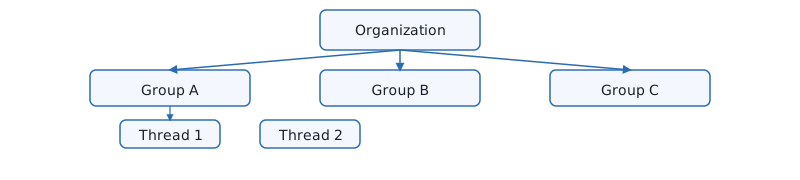
Organization → Groups → Threads (structure)▼
The diagram below shows the hierarchical relationship between an Organization, its Groups, and message Threads.
User journey: From onboarding to active use▼
Quick workflow diagram of a typical user journey.
💡 Tip: The Agent pulls organization-scoped FAQs when available to give faster, consistent answers.
🧠 Agent Assistant
What is the Agent?▼
The Agent is an optional in-chat assistant that can answer questions, summarize conversations, and find relevant organization FAQs. It's designed to help members get quick, contextual responses without leaving the chat.
How do I trigger the Agent?▼
Trigger the Agent by:
Mentioning the Agent in chat (e.g., @agent what is our refund policy?)
Tapping the assistant / help button on the chat screen
Using Quick Actions or the search bar where available
What context does the Agent use?▼
The Agent prioritizes organization-scoped FAQs (if uploaded) and recent conversation history. If organization FAQs are available, the Agent uses those embeddings to produce more accurate, consistent answers for members of that organization.
Privacy & Data▼
The Agent operates within your deployment's privacy rules. For this project:
Organization FAQs are processed into embeddings — no raw user messages are uploaded unless explicitly allowed.
Agent responses may reference public org FAQs and recent chat context only.
If you require different privacy controls, ask your admin to disable/limit Agent features in the Admin Portal.
Admin controls for Agent▼
Organization admins can:
Enable or disable the Agent for the organization
Upload or remove organization-scoped FAQs that the Agent uses
Set rate limits or restrict which groups can invoke the Agent
If you don't see Agent controls, ask an organization admin to check the Admin Portal.
⚙️ Admin Features
What can admins do?▼
Group admins have special permissions to manage groups:
Edit group name, description, and rules
Manage members: promote, remove, or set permissions
Delete any message in the group (not just their own)
Set message retention policies
Clear all messages at once if needed
Delete the entire group
✓ Feature: Admin tools help keep groups organized and healthy.
How do I moderate messages?▼
As an admin, you can moderate message content:
Long-press any message (even from other members)
Select "Delete" to remove it
The message is instantly removed from the group
All members are notified the message was deleted
💡 Tip: Use group rules to set clear expectations about what's acceptable in your group.
How do I set a message retention policy?▼
To automatically delete old messages:
Open the group and tap "Group Info"
Find "Message Auto-Delete" setting
Choose a retention period:
Keep Forever (no deletion)
24 hours
7 days
30 days
Tap "Save"
All messages older than the selected period are immediately deleted
✓ Feature: Retention policies work automatically in the background.
Can I clear all messages at once?▼
Yes, admins can clear all group messages:
Open "Group Info"
Scroll to the bottom and select "Clear All Messages"
Confirm the action
All messages in the group are permanently deleted
⚠️ Important: This action cannot be undone. All chat history will be lost.
How do I promote someone to admin?▼
To give admin permissions to another member:
Open "Group Info" and go to "Members"
Find the member you want to promote
Tap their name and select "Promote to Admin"
They now have full admin permissions
💡 Tip: Promote trusted members who will help manage the group responsibly.
This helps you understand your group's communication patterns and health.
📌 Organization Features
What is Event Scheduling?▼
Event Scheduling lets you create and manage events for your organization:
Create events with title, description, date, time, and location
Set optional maximum attendee limits
Members can register/RSVP for events
Event hosts can view the list of all registered attendees
Create group chats for event participants with one tap
Track attendance and manage waitlists
✓ Feature: Events help organize meetups, meetings, and activities within your community.
How do I create an event?▼
To create an event in your organization:
Select your organization from the list
Tap the "+" button to add new content
Select "Create Event"
Enter the event title and description
Set the date, start time, and end time
Add a location (optional)
Set maximum attendees (optional)
Tap "Create Event"
💡 Tip: Organization admins and members (in public orgs) can create events.
How do I register for an event?▼
To register for an event:
Find the event in your organization's event list
Tap on the event to view details
Tap the "Register" or "RSVP" button
Your registration is confirmed immediately
You'll receive reminders as the event approaches
If the event has a maximum attendee limit and is full, you may be placed on a waitlist.
How can I view event attendees?▼
Event hosts and organization admins can view the full attendee list:
Open the event you created or manage
Tap the 👥 (attendees) button
See all registered attendees with their names and emails
Create a group chat for all attendees with one tap
⚠️ Privacy: Attendee information is only visible to the event host and organization admins.
Can I create a group chat for event attendees?▼
Yes! Event hosts can easily create a group chat for all attendees:
Open the event and view the attendees list
Tap "Create Group Chat for Attendees"
A new group is created with all registered attendees
Use the group to coordinate, share updates, and communicate
✓ Feature: This is great for coordinating logistics, sharing last-minute updates, or building community.
What are organization-level pins?▼
Pins are important items that stay visible in your organization:
Create pins to highlight important content for all organization members
Pins appear at the top of your organization view, separate from regular groups
Can contain text, titles, or images
Great for announcements, important links, or shared resources
Each pin shows who created it and when
✓ Feature: Pins stay prominent until deleted, making them perfect for ongoing information.
How do I create a pin in my organization?▼
To create a pin in your organization:
Select your organization from the list
Tap the "+" button to add new content
Select "Create Pin"
Enter a title and optional image/content
Tap "Create"
The pin is now visible to all members in the organization
💡 Tip: In private organizations, only admins can create pins.
Can I react to pins?▼
Yes! You can add emoji reactions to pins:
Tap on a pin to view its details
Tap the emoji button to add a reaction
Choose any emoji to express your response
See how many members reacted with each emoji
Remove your reaction by tapping it again
Reactions help gauge interest and engagement with important content.
What are sticky notes?▼
Sticky notes are temporary, colorful notes for your organization:
Create quick reminders and notes visible to all organization members
Choose from different colors to organize by topic or priority
Appear in a dedicated sticky notes section in your organization
Perfect for to-do lists, reminders, quick updates
Automatically disappear after 7 days (you can also delete manually)
✓ Feature: Unlike pins, sticky notes auto-delete to keep your organization clean.
How do I create a sticky note?▼
To create a sticky note in your organization:
Select your organization
Tap the "+" button
Select "Create Sticky Note"
Type your note content
Choose a color (yellow, pink, blue, green, etc.)
Tap "Create"
All organization members can see the note
⚠️ Important: Sticky notes automatically delete after 7 days. If you need permanent content, use a pin instead.
How do I delete a sticky note?▼
To manually delete a sticky note before it auto-expires:
Find the sticky note you want to delete
Long-press on the note
Select "Delete"
Confirm the deletion
The note is immediately removed from the organization
💡 Tip: Only the creator can delete their own notes (or organization admins).
What are polls?▼
Polls are a way to gather input and make group decisions:
Create a poll with a question and multiple choice options
All organization members can vote on the poll
See results in real-time as members vote
Polls are perfect for decisions, surveys, or gathering feedback
Polls can optionally expire after a set time
After expiration or deletion, poll results are archived
✓ Feature: Polls encourage participation and make decisions more democratic.
How do I create a poll?▼
To create a poll in your organization:
Select your organization
Tap the "+" button
Select "Create Poll"
Enter the poll question (e.g., "Which time works best for our meeting?")
Add poll options (one per line):
Option 1
Option 2
Option 3
Optionally set an expiration time (when voting closes)
Tap "Create Poll"
Organization members can immediately start voting
How do I vote on a poll?▼
To vote on a poll:
Open your organization and find the active poll
Tap the option you want to vote for
Your vote is recorded immediately
See real-time results as other members vote
You can change your vote by selecting a different option
Your name appears under the option you voted for
💡 Tip: You can change your vote as many times as you want before the poll closes.
Can I see who voted for what in a poll?▼
Yes, polls show transparent voting information:
Tap on any poll option to see who voted for it
See the list of voters' names for each option
View vote counts and percentages for each option
Track which members haven't voted yet
This transparency helps foster trust and engagement in your organization.
How long do polls stay active?▼
Polls can have different lifespans:
No expiration: The creator can set polls to stay open indefinitely
Timed expiration: Polls can be set to close after a specific time (e.g., 1 hour, 1 day)
Manual deletion: The creator can close a poll early
Once closed, members can no longer vote
Final results are preserved for reference
✓ Feature: Expired polls are automatically cleaned up, keeping your organization uncluttered.
Can I react to polls?▼
Yes! Like pins, you can react to polls with emojis:
Open a poll to see details
Tap the emoji button
Select an emoji to express your reaction to the poll
See reactions from other members
Remove your reaction by tapping it again
Emoji reactions on polls let members show support or sentiment about the poll itself.
Can I delete a pin, sticky note, or poll?▼
Yes, deletion is available:
Long-press on the item (pin, sticky note, or poll)
Select "Delete" from the menu
Confirm the deletion
The item is immediately removed
Who can delete:
Creator: Can always delete their own content
Admin: Can delete any content in their organization
Member: Can only delete their own content
⚠️ Important: Deleted pins, sticky notes, and polls cannot be recovered.
What are private organizations and how do they affect pins/stickies/polls?▼
Private organizations have restricted permissions for content creation:
Public Organization: Any member can create pins, sticky notes, and polls
Private Organization: Only organization admins can create pins, sticky notes, and polls
Who sees content:
All organization members (both public and private) can see all pins, sticky notes, and polls
All members can vote on polls and react to content with emojis
💡 Tip: Private organizations help maintain control over the type and quality of information shared.
🔐 Encryption & Data Protection
How are my messages encrypted?▼
Your messages are protected by multiple layers of encryption:
In Transit: All messages sent from your phone to our servers use HTTPS/TLS 1.3 encryption. This prevents anyone from intercepting your messages while they're being sent over the internet.
At Rest: Messages stored on our servers are protected by database encryption and Row-Level Security policies, ensuring only authorized group members can access them.
Access Control: Only members of your group can view messages in that group. Admins cannot decrypt and read your messages.
💡 Tip: Your password is handled securely by our authentication system (Supabase Auth) and is never visible to app developers.
What is HTTPS/TLS encryption?▼
HTTPS/TLS 1.3 is the industry standard for secure web communication:
HTTPS: The "S" stands for "Secure" - it's HTTP with encryption
TLS: Transport Layer Security is the protocol that handles the encryption
In Practice: When you send a message, it's encrypted before leaving your phone and remains encrypted until it reaches our secure servers
Protection: Even if someone intercepts the data, they cannot read your messages because they're encrypted
🔒 This is the same encryption used by banks, email services, and other apps you trust with sensitive information.
What is Row-Level Security (RLS)?▼
Row-Level Security is a database-level protection that ensures you can only see messages you're authorized to see:
How It Works: Before the database returns any messages, it checks who is requesting them
Group Check: Are you a member of this group? If no, the database blocks access
Automatic: RLS works automatically - you don't have to do anything
Server-Side: This protection is enforced at the database level, not just in the app
✅ Even if an attacker got database access, RLS would prevent them from viewing messages they're not authorized to see.
Is end-to-end encryption (E2EE) supported?▼
NextzChat uses server-side encryption with Row-Level Security rather than full end-to-end encryption:
Current Security: Messages are encrypted in transit (HTTPS) and protected at rest (database encryption + RLS)
Why: RLS provides stronger features like message search, content moderation, and admin oversight
Trust Model: You trust the app developers and Supabase to protect your data (same as WhatsApp, iMessage, and most messaging apps)
Trade-off: RLS allows better moderation and safety features, but requires trusting the service provider
🔍 Your messages can be searched, analyzed for safety, and admins can moderate content - these features require server-side access.
Can app developers read my messages?▼
No. Messages are protected by multiple security measures: